

Peach does not appear in Enterprise Applications
Symptoms
- Peach is not visible in Microsoft Entra
- Users cannot be assigned
Resolution
Verify that the Admin Consent URL was completed using a Microsoft Entra administrator account. Refresh the Enterprise Applications page after consent is granted.You should see Peach listed as an Enterprise Application.
Users cannot sign in
Symptoms
- Login fails after Microsoft authentication
- User receives an access error
Resolution
Verify the user has been assigned to the Peach Enterprise Application in Microsoft Entra. The user, or a group they belong to, must be assigned either the Editor or Admin role. Navigate to:Shared mailbox does not appear
Symptoms
- User completes onboarding
- Expected mailbox is missing
Resolution
Verify the user has access to the mailbox within Microsoft 365. Peach can only display mailboxes that Microsoft has granted the user permission to access.Mailbox permissions are managed within Microsoft Exchange and Microsoft 365.
Emails are not appearing in Peach
Symptoms
- Mailbox connects successfully
- New emails do not appear
Resolution
Verify:- The mailbox connection completed successfully
- The mailbox still exists
- Microsoft permissions have not been revoked
Outbound emails fail to send
Symptoms
- Email sends successfully in Peach
- Recipient never receives the message
- Microsoft generates a Non-Delivery Report (NDR)
Resolution
Many Microsoft tenants apply stricter filtering to application-generated mail. Your Microsoft administrator may need to create an Application Access Policy. Example:Test outbound email delivery
Peach includes a built-in email delivery test. Navigate to: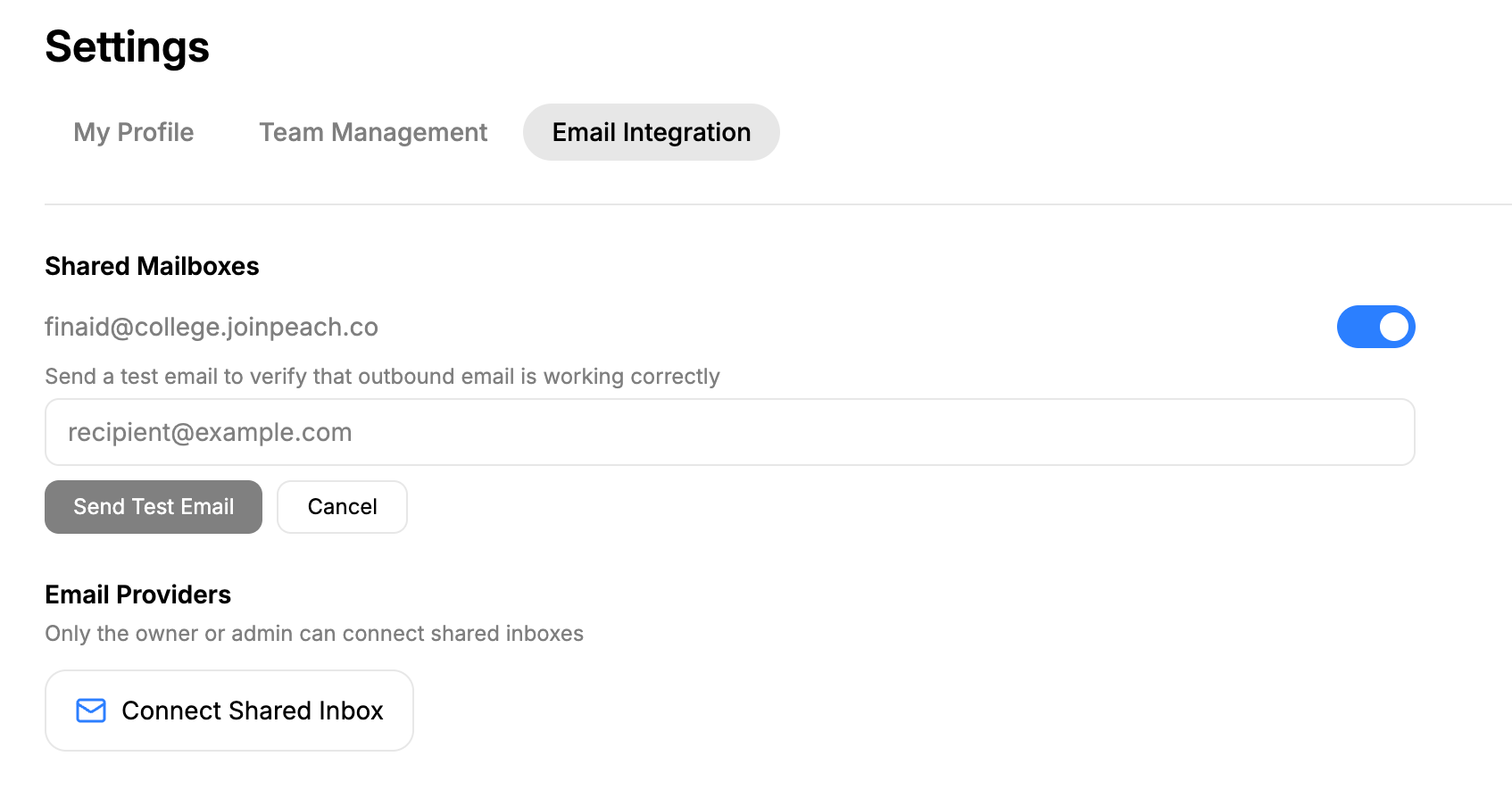
Receiving the test email confirms that Microsoft is allowing outbound mail from Peach.
Still need help?
If the issue persists, gather the following information before contacting support:- Institution name
- Shared mailbox address
- User email address
- Screenshot of the error
- Any Microsoft NDR message