

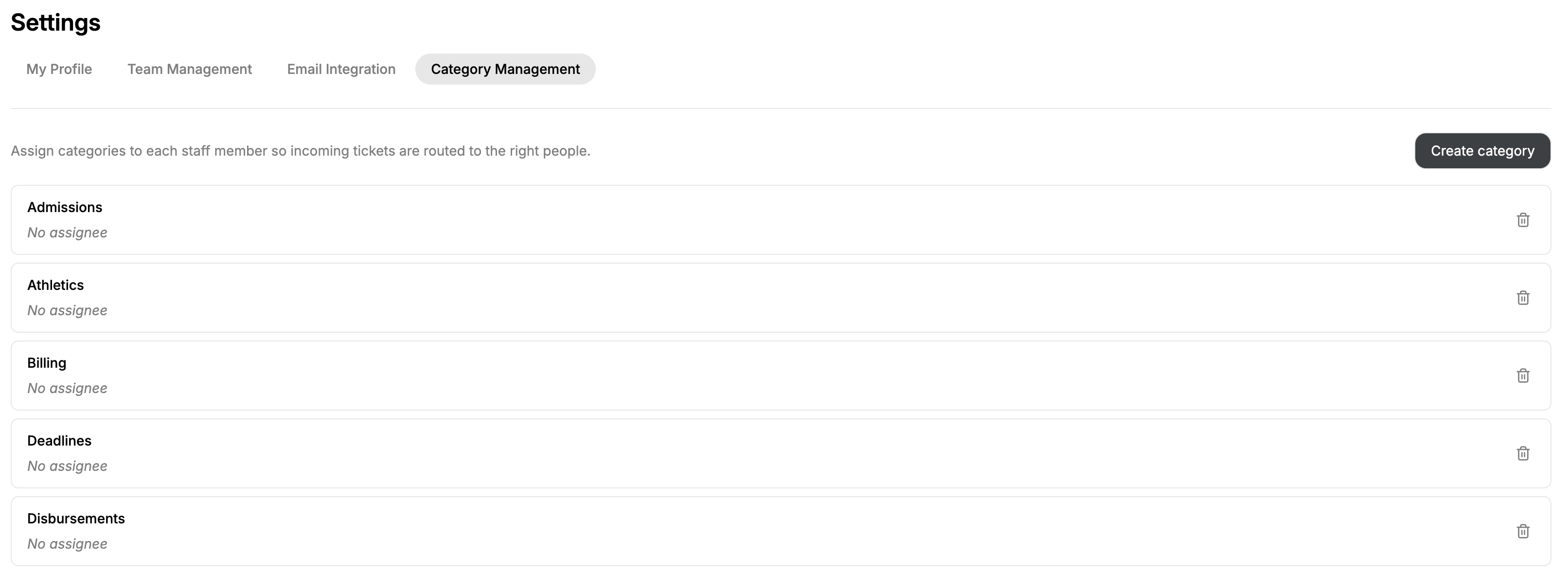
Manage categories
The Category Management page displays all categories currently available to your institution. Each category can also have one or more team members assigned to it. When a new ticket is classified into a category with assigned team members, Peach can automatically route the ticket to the appropriate staff member.Assign team members
Assign team members to a category when you want incoming tickets in that category to be automatically routed to those staff members. For example, you might assign staff members who specialize in loan questions to a Loans category.When multiple team members are assigned
More than one team member can be assigned to the same category. When a new ticket is classified into that category, Peach assigns it to the team member in that category who currently has the fewest open tickets assigned to them. If no team members are assigned to a category, the category can still be used to classify tickets without automatically routing them to a specific staff member.Create a category
Select Create category to add a new category.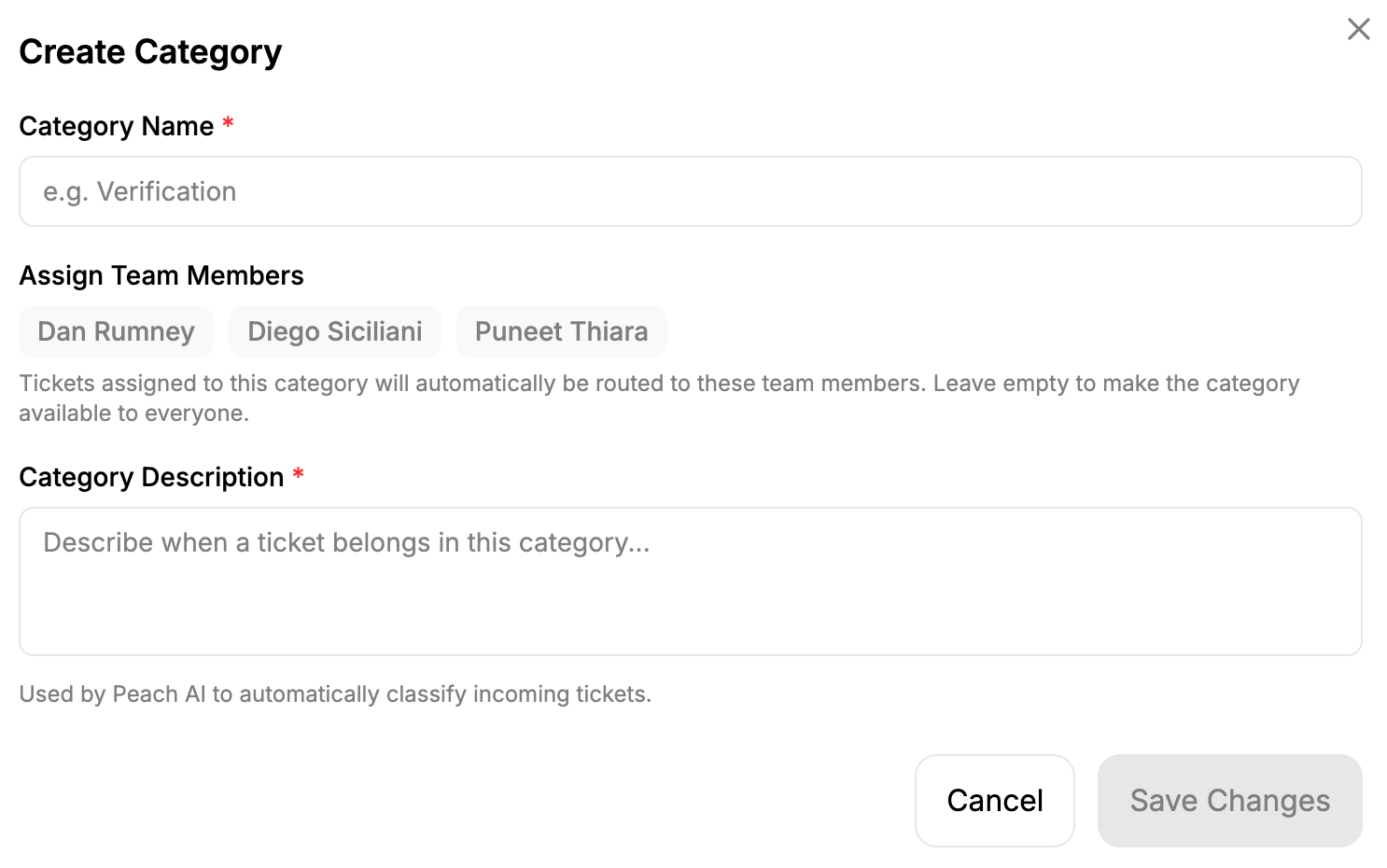
Category name
Enter a clear name for the category, such as:- Verification
- Loans
- Scholarships
- Satisfactory Academic Progress
- Disbursements
Assigned team members
Select the team members who should automatically receive new tickets classified into the category. You can also leave this blank if you do not want tickets in the category to be automatically assigned.Category description
Describe the types of messages that should be assigned to the category. For example, instead of:Questions about verification.Use a more descriptive definition:
Questions related to financial aid verification, including verification selection, required documentation, verification worksheets, conflicting information identified during verification, and the status or completion of the verification process.
Automatic classification and assignment
When a new email arrives in a connected shared inbox:1
Peach evaluates the message
Peach analyzes the incoming inquiry.
2
Peach assigns a category
Peach uses your institution’s category definitions to determine the appropriate category for the ticket.
3
Peach checks the category's team members
If staff members are assigned to the category, Peach identifies the eligible team member with the fewest open tickets.
4
The ticket is assigned
Peach assigns the new ticket to that team member.