

Before you begin
Peach relies on your institution’s email environment to authenticate users and connect shared mailboxes. Before starting setup, confirm that your IT team has completed the Microsoft 365 integration process. Your IT team should have:- Configured Peach in Microsoft Entra
- Granted the required Microsoft permissions
- Assigned users or security groups to the Peach application
- Granted access to the shared mailbox your office uses for student communications
Most setup issues occur when the Microsoft integration has not been completed or the user does not have access to the appropriate shared mailbox.
Once your IT team has completed these steps, you can continue with onboarding.
What you’ll accomplish
By the end of setup, you will:- Sign in using your institutional account
- Connect your team’s shared inbox
- Upload institutional policies and procedures
- Invite team members
- Prepare Peach to draft policy-aligned responses
Step 1: Sign in
Authenticate using your institutional Microsoft 365 account. Peach uses your organization’s existing authentication system and does not require a separate password.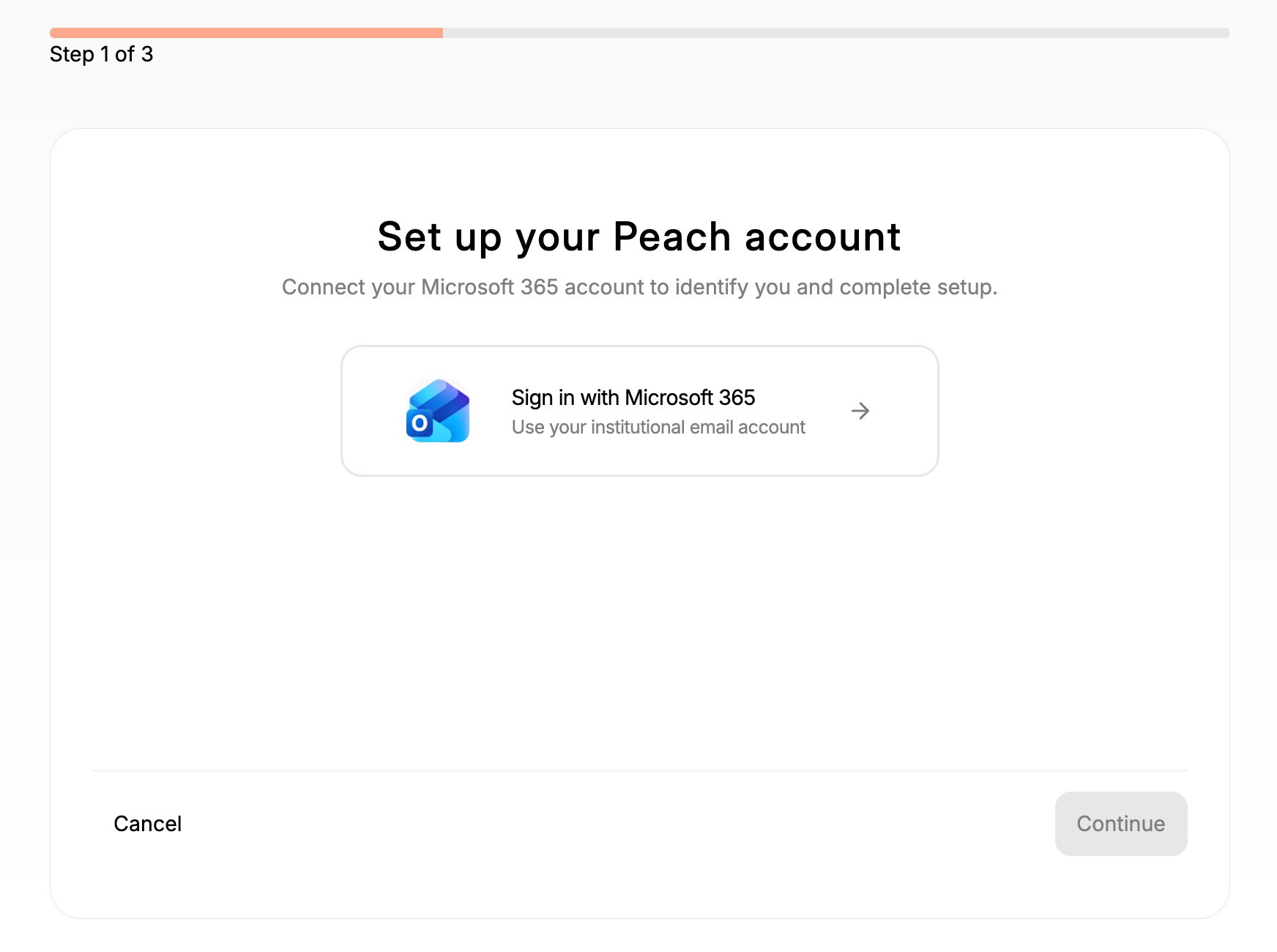
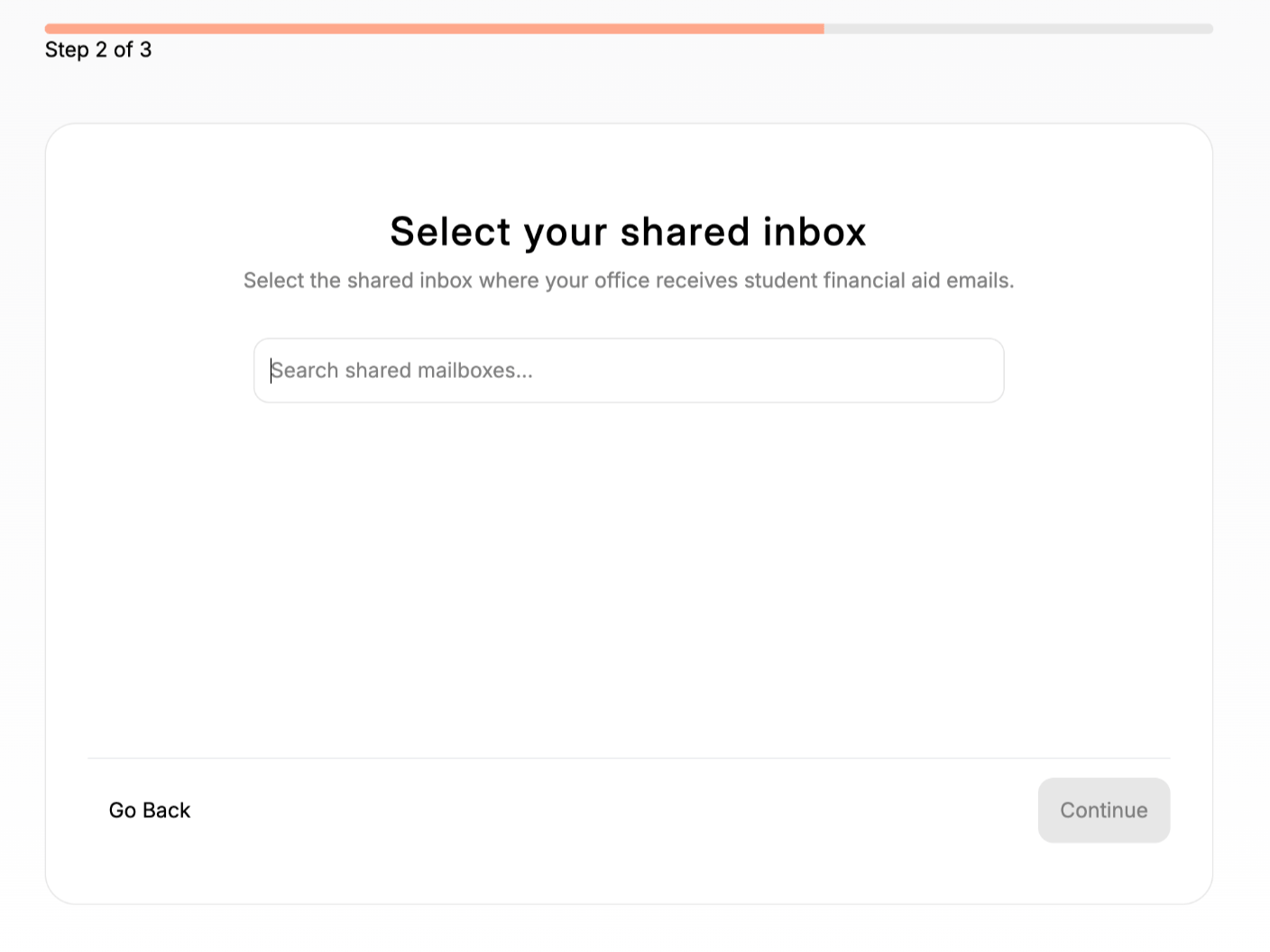
Once authentication is complete, Peach will identify the shared mailboxes you have access to.
Step 2: Connect your shared inbox
Depending on how your institution was set up, you may not see this step during onboarding.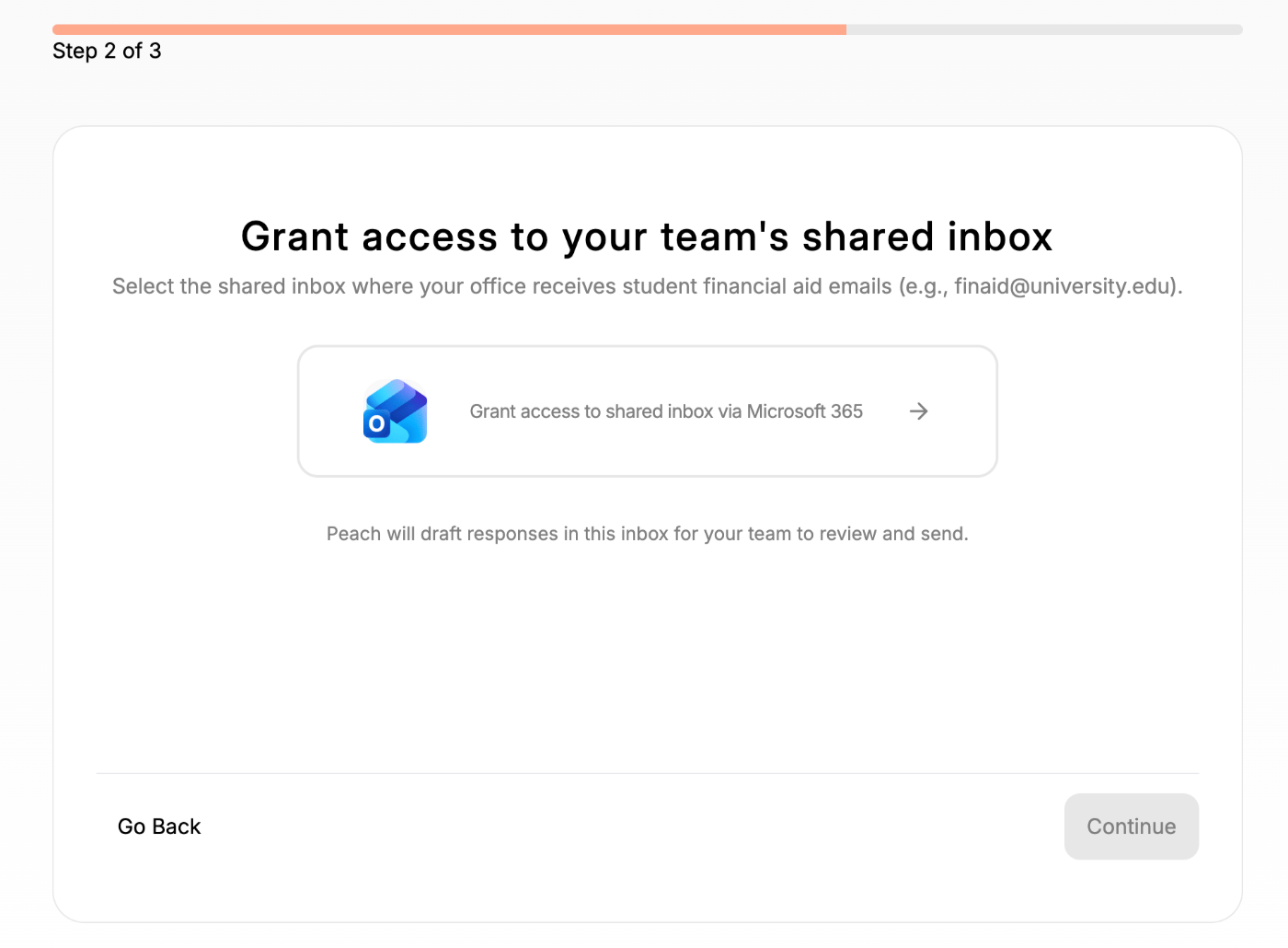
- An IT administrator testing the Microsoft integration
- Another administrator completing setup
- A staff member who previously connected an inbox
Even if you do not see this step during onboarding, you can connect additional shared inboxes at any time from Settings → Email Integration.See the Connect a shared inbox guide for detailed instructions.
Step 3: Upload policies and procedures
Upload the documents Peach should use when generating drafts and answering questions. Examples include:- Financial aid policies
- Verification procedures
- Scholarship guidelines
- Appeal processes
- Internal office documentation
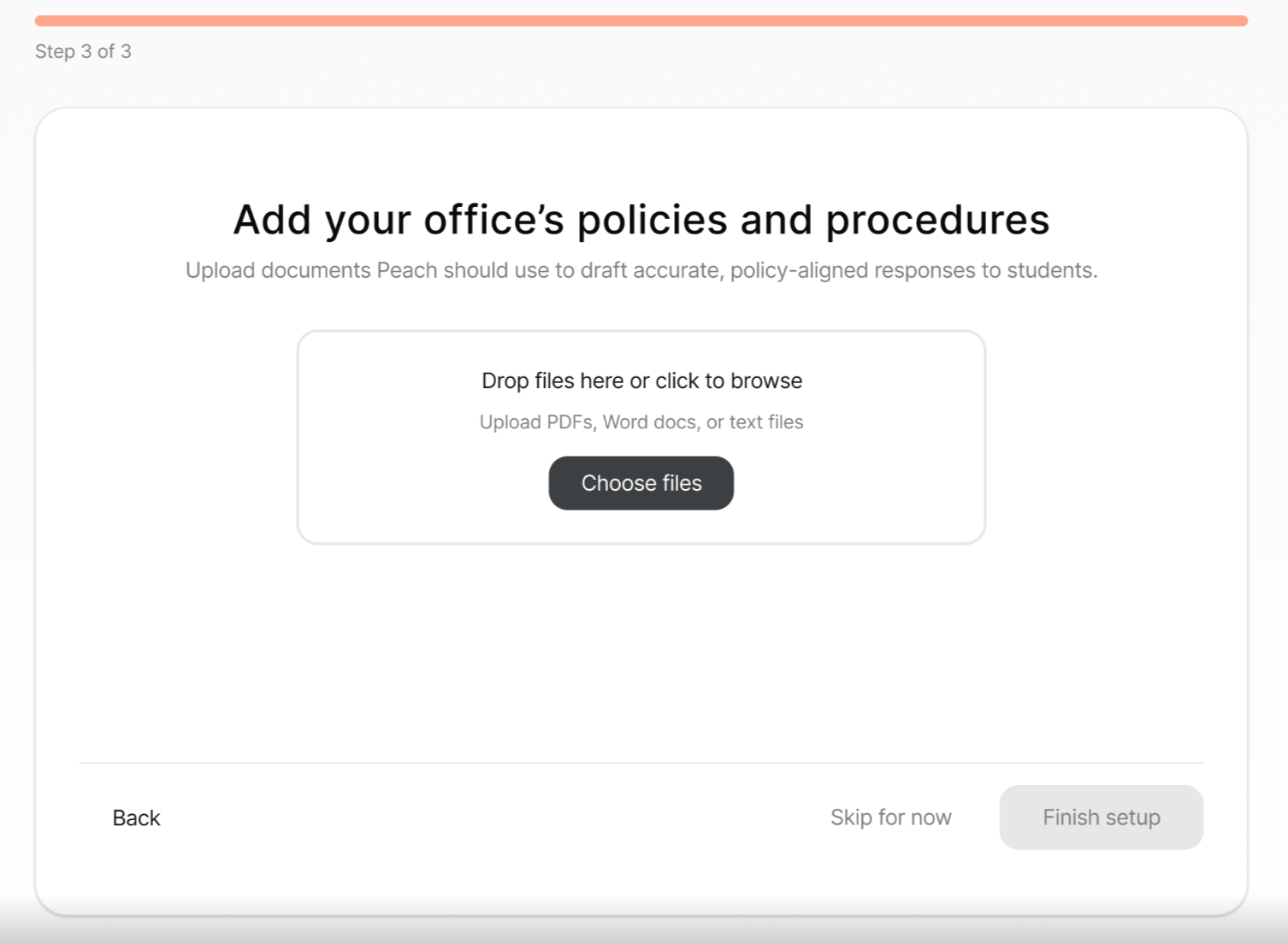
- PDF (.pdf)
- Microsoft Word (.docx)
- Text files (.txt)
Peach uses these documents to generate institution-specific responses rather than generic financial aid guidance.
You can skip this step and upload documents later to the knowledge base.
Step 4: Invite your team
Once your inbox is connected, invite other staff members who should have access to Peach. Navigate to:Admin
Admins can:- Manage users
- Configure integrations
- Connect shared inboxes
- Manage platform settings
Editor
Editors can:- Work on tickets
- Generate AI-assisted drafts
- Send emails
- Access connected inboxes
Only users who have been assigned access to the Peach application by your institution’s IT team can sign in.
We recommend inviting all staff members who regularly respond to student inquiries from your shared mailbox.
What happens next?
1
Your inbox begins syncing
Incoming student emails are imported into Peach.
2
Documents are indexed
Uploaded materials become available to the AI assistant and email drafting workflows.
3
Your team can collaborate
Staff members can access Peach and work on tickets together.
4
Student inquiries are resolved faster
Generate drafts, reference institutional policies, and send responses directly from Peach.
Next steps
Explore Tickets
Learn how to manage student inquiries, collaborate with your team, and respond with AI-assisted drafts.
Try the AI Assistant
Ask a financial aid question and get guidance grounded in federal regulations and your institution’s resources.