> ## Documentation Index
> Fetch the complete documentation index at: https://docs.joinpeach.co/llms.txt
> Use this file to discover all available pages before exploring further.
# Troubleshooting
This guide covers the most common Microsoft 365 integration issues.
## Peach does not appear in Enterprise Applications
### Symptoms
* Peach is not visible in Microsoft Entra
* Users cannot be assigned
### Resolution
Verify that the Admin Consent URL was completed using a Microsoft Entra administrator account.
Refresh the Enterprise Applications page after consent is granted.
You should see Peach listed as an Enterprise Application.
***
## Users cannot sign in
### Symptoms
* Login fails after Microsoft authentication
* User receives an access error
### Resolution
Verify the user has been assigned to the Peach Enterprise Application.
Navigate to:
```text theme={null}
Microsoft Entra → Enterprise Applications → Peach → Users and Groups
```
Confirm the user or security group is listed.
***
## Shared mailbox does not appear
### Symptoms
* User completes onboarding
* Expected mailbox is missing
### Resolution
Verify the user has access to the mailbox within Microsoft 365.
Peach can only display mailboxes that Microsoft has granted the user permission to access.
Mailbox permissions are managed within Microsoft Exchange and Microsoft 365.
***
## Emails are not appearing in Peach
### Symptoms
* Mailbox connects successfully
* New emails do not appear
### Resolution
Verify:
* The mailbox connection completed successfully
* The mailbox still exists
* Microsoft permissions have not been revoked
You can disconnect and reconnect the mailbox from Peach Settings.
***
## Outbound emails fail to send
### Symptoms
* Email sends successfully in Peach
* Recipient never receives the message
* Microsoft generates a Non-Delivery Report (NDR)
### Resolution
Many Microsoft tenants apply stricter filtering to application-generated mail.
Your Microsoft administrator may need to create an Application Access Policy.
Example:
```powershell theme={null}
New-ApplicationAccessPolicy `
-AppId 45c38646-07a4-4998-b43c-58e1b5c0bcee `
-PolicyScopeGroupId `
-AccessRight RestrictAccess `
-Description "Scope Peach Mail.Send to shared mailboxes only"
```
This configuration varies by institution and may require assistance from your Microsoft administrator.
***
## Test outbound email delivery
Peach includes a built-in email delivery test.
Navigate to:
```text theme={null}
Settings → Email Integration
```
Select **Test Outbound** for the connected mailbox.
Send a test message to your email address.
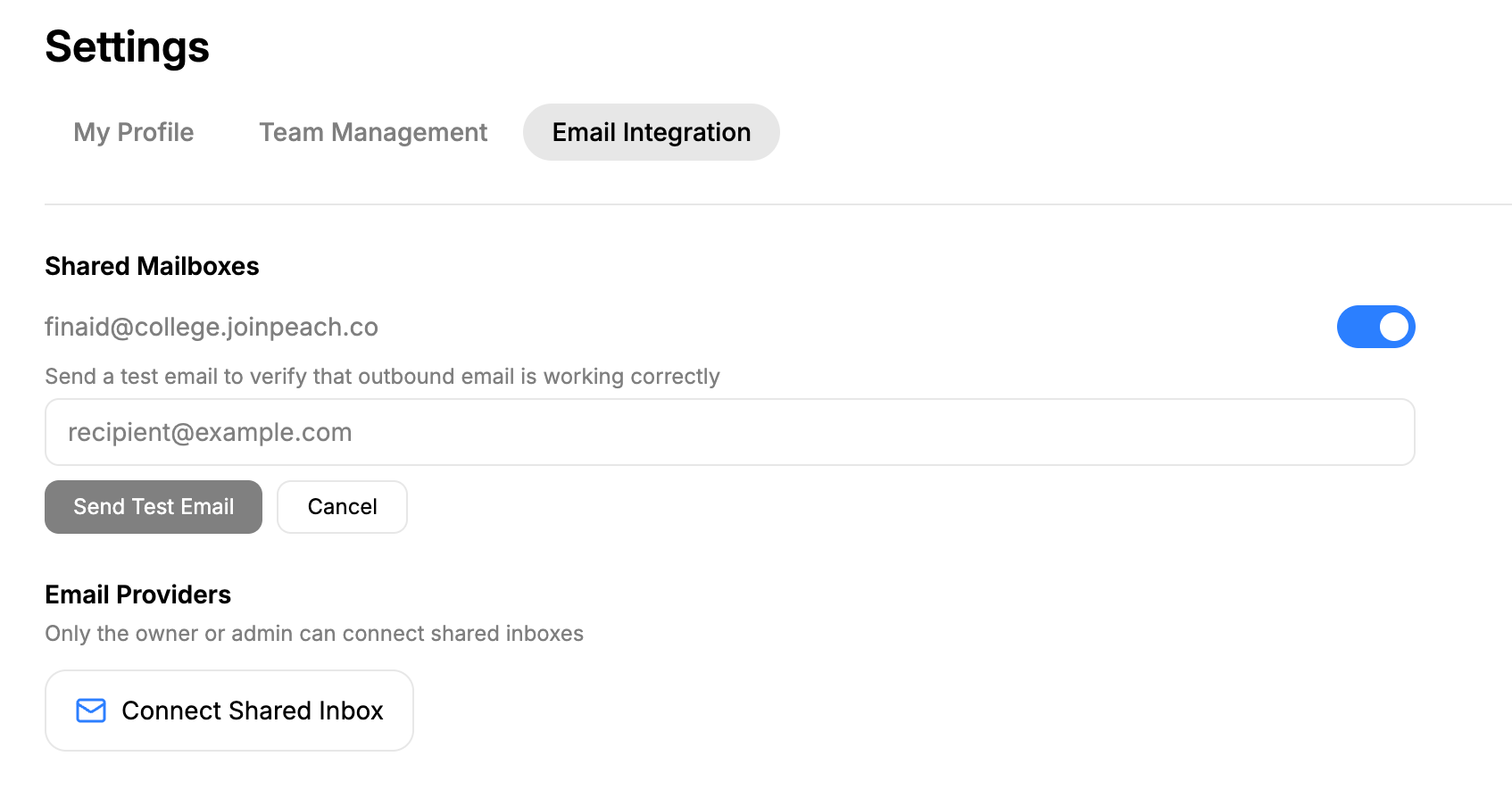 Receiving the test email confirms that Microsoft is allowing outbound mail from Peach.
***
## Still need help?
If the issue persists, gather the following information before contacting support:
* Institution name
* Shared mailbox address
* User email address
* Screenshot of the error
* Any Microsoft NDR message
Providing this information will help us resolve the issue more quickly.
Receiving the test email confirms that Microsoft is allowing outbound mail from Peach.
***
## Still need help?
If the issue persists, gather the following information before contacting support:
* Institution name
* Shared mailbox address
* User email address
* Screenshot of the error
* Any Microsoft NDR message
Providing this information will help us resolve the issue more quickly.