> ## Documentation Index
> Fetch the complete documentation index at: https://docs.joinpeach.co/llms.txt
> Use this file to discover all available pages before exploring further.
# Team management
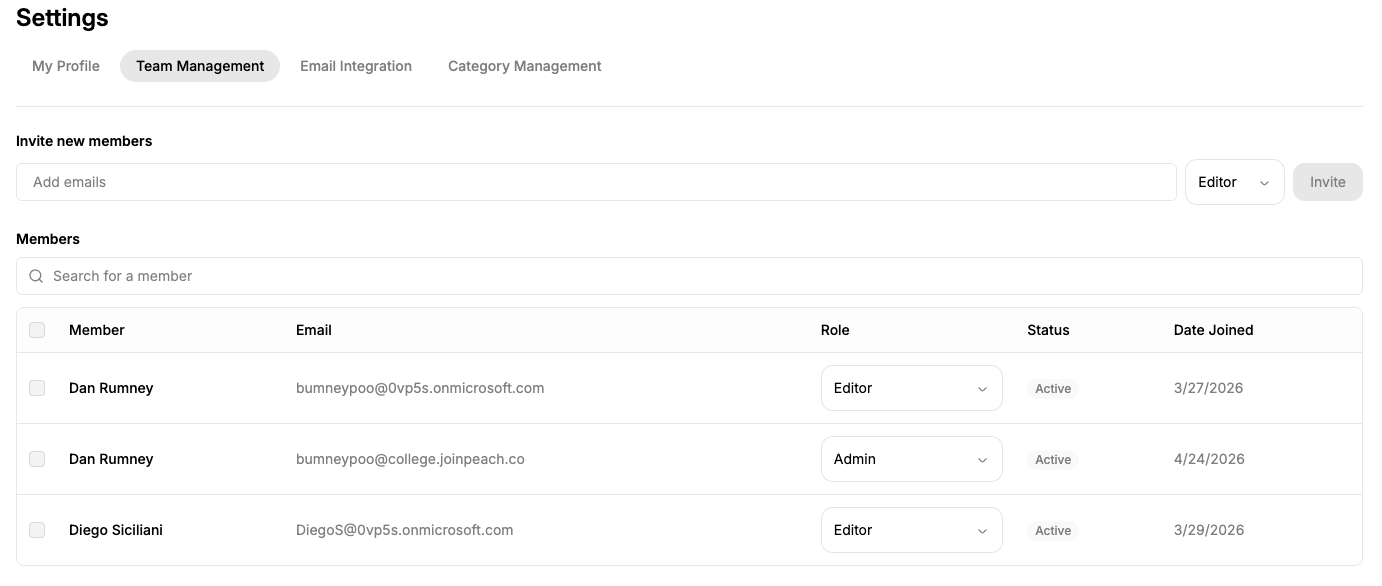
The **Team Management** tab allows administrators to invite staff members to Peach and manage existing members of their team.
To access Team Management, go to **Settings → Team Management**.
 ## Invite team members
To invite someone to Peach:
Enter the staff member's institutional email address under **Invite new members**.
Choose the appropriate role for the staff member.
Select **Invite**.
Peach supports **Admin** and **Editor** roles.
Your institution's Microsoft administrator must also configure the appropriate access to the Peach Enterprise Application before a user can sign in.
[Learn more about Admin and Editor roles →](https://docs.joinpeach.co/onboarding#step-4-invite-your-team)
## Manage team members
The **Members** section shows the staff members who have been added to your Peach account.
You can view each member's:
* Name
* Email address
* Role
* Status
* Date joined
Administrators can also update a team member's role from the **Role** dropdown.
## Invite team members
To invite someone to Peach:
Enter the staff member's institutional email address under **Invite new members**.
Choose the appropriate role for the staff member.
Select **Invite**.
Peach supports **Admin** and **Editor** roles.
Your institution's Microsoft administrator must also configure the appropriate access to the Peach Enterprise Application before a user can sign in.
[Learn more about Admin and Editor roles →](https://docs.joinpeach.co/onboarding#step-4-invite-your-team)
## Manage team members
The **Members** section shows the staff members who have been added to your Peach account.
You can view each member's:
* Name
* Email address
* Role
* Status
* Date joined
Administrators can also update a team member's role from the **Role** dropdown.