> ## Documentation Index
> Fetch the complete documentation index at: https://docs.joinpeach.co/llms.txt
> Use this file to discover all available pages before exploring further.
# Admin setup
Connect Peach to Microsoft 365 so your team can authenticate with Microsoft, access shared mailboxes, and send emails directly from Peach.
## What you'll accomplish
After completing this guide:
* Peach will appear as an Enterprise Application in Microsoft Entra
* Users will be able to sign in using Microsoft 365
* Shared mailboxes can be connected to Peach
* Your team can send and receive emails from Peach
You must be a Microsoft Entra administrator to complete this setup.
## Prerequisites
Before you begin, ensure you have:
* Microsoft Entra admin access
* At least one shared mailbox
* Permission to add Enterprise Applications
***
## Step 1: Grant Admin Consent
Open the following URL while signed in as a Microsoft administrator:
```text theme={null}
https://login.microsoftonline.com/organizations/adminconsent?client_id=45c38646-07a4-4998-b43c-58e1b5c0bcee
```
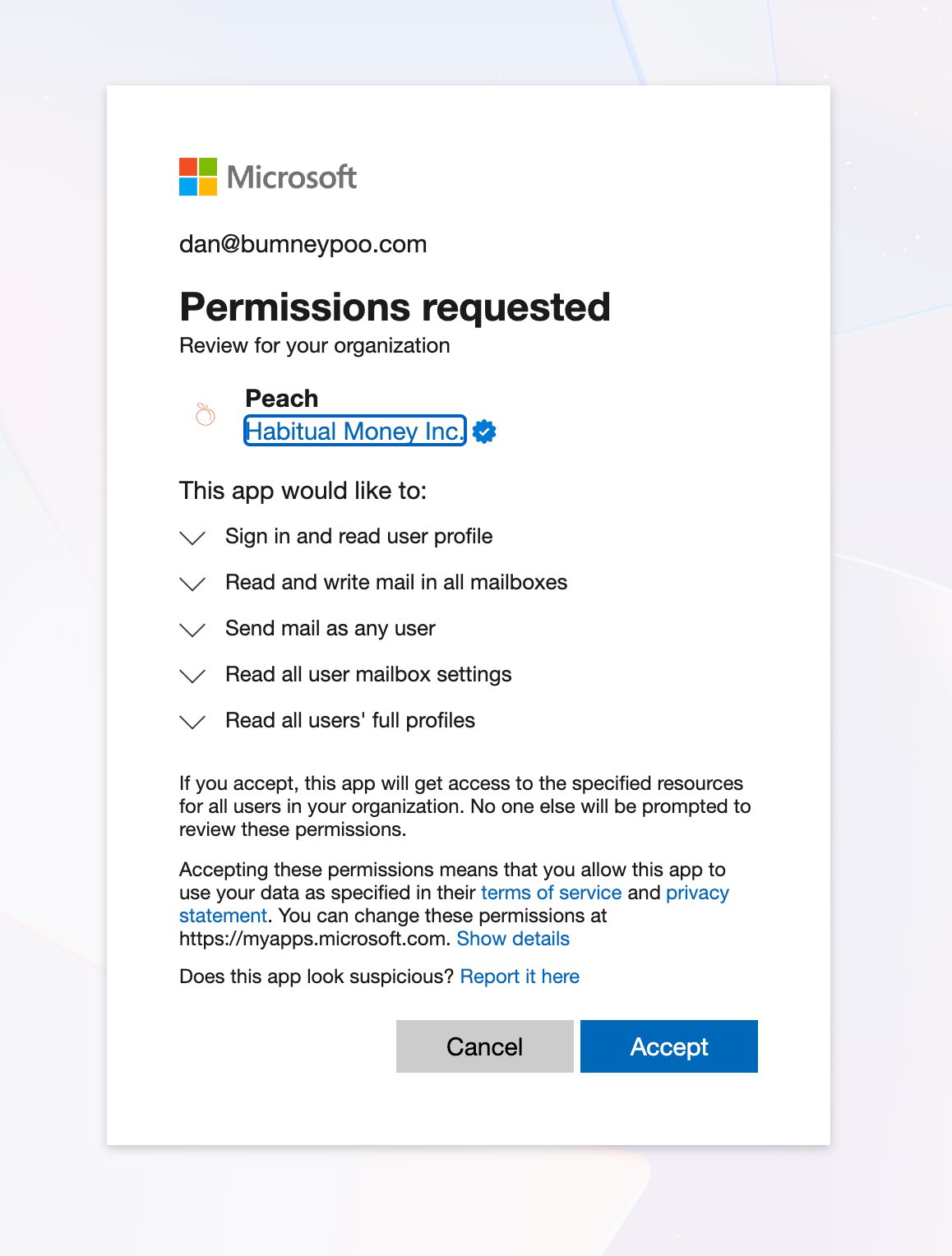
Microsoft will display the permissions requested by Peach.
Select **Accept**.
This creates the Peach Enterprise Application within your Microsoft tenant.
 ***
## Step 2: Verify Peach was added
Navigate to:
```text theme={null}
Microsoft Entra → Enterprise Applications
```
Refresh the page.
You should see **Peach** listed among your applications.
***
## Step 2: Verify Peach was added
Navigate to:
```text theme={null}
Microsoft Entra → Enterprise Applications
```
Refresh the page.
You should see **Peach** listed among your applications.
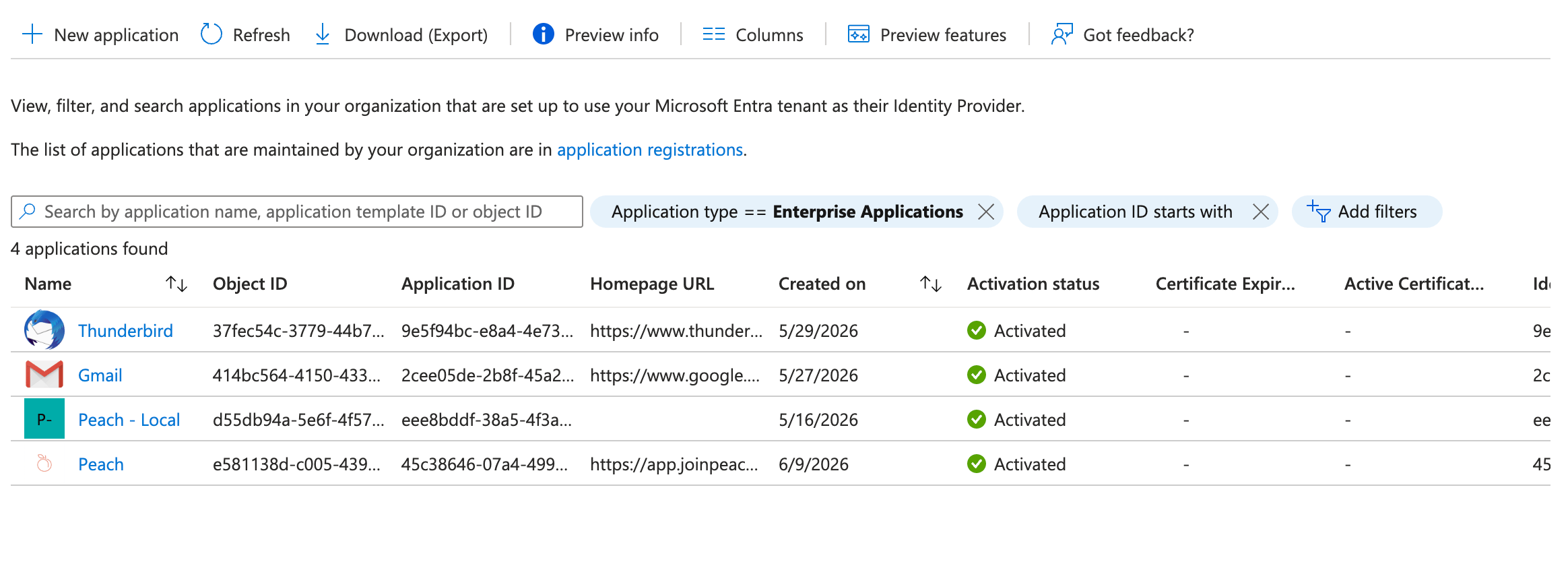 If Peach appears in Enterprise Applications, the consent step was successful.
***
## Step 3: Open the Peach application
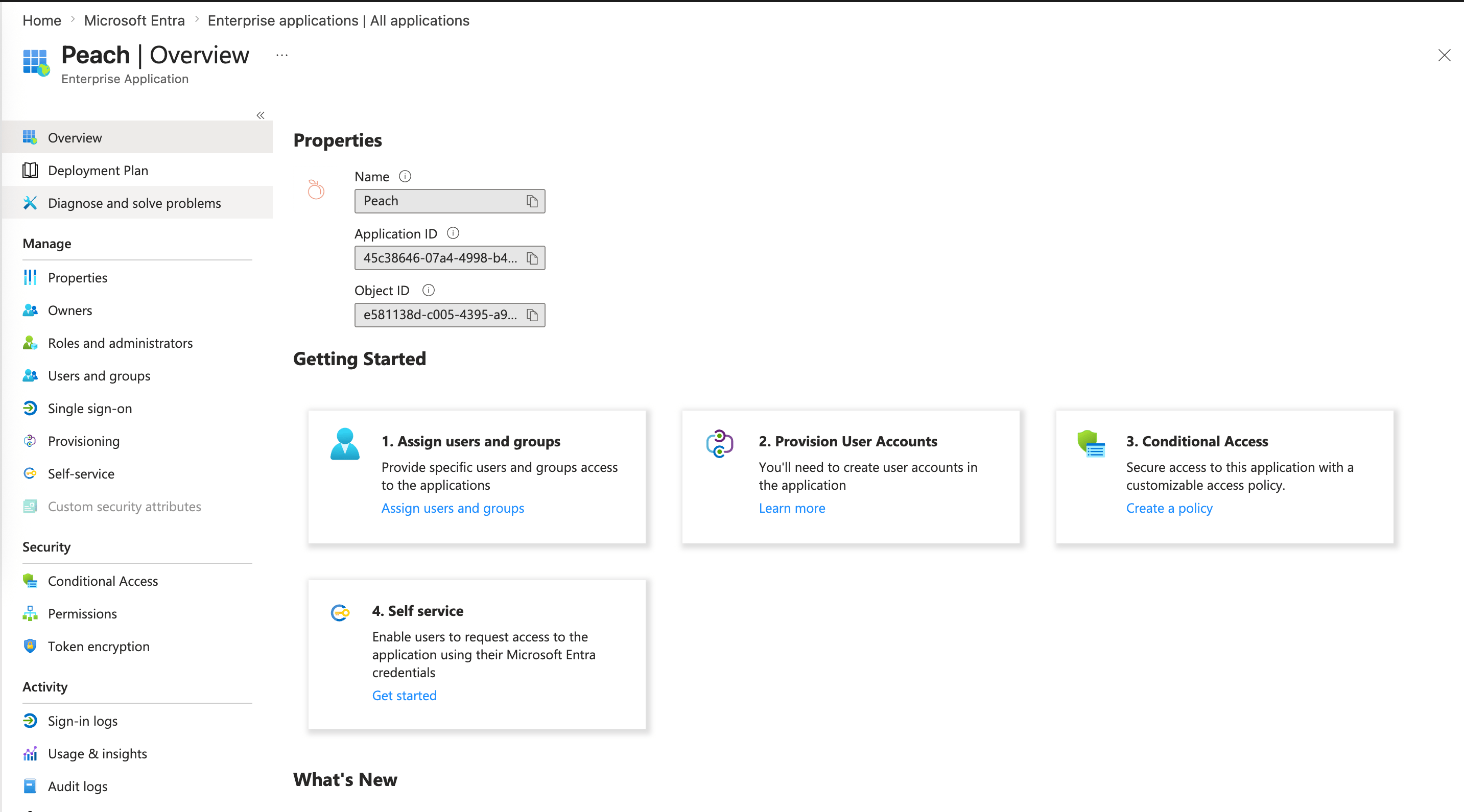
Select **Peach** from the Enterprise Applications list.
If Peach appears in Enterprise Applications, the consent step was successful.
***
## Step 3: Open the Peach application
Select **Peach** from the Enterprise Applications list.
 ***
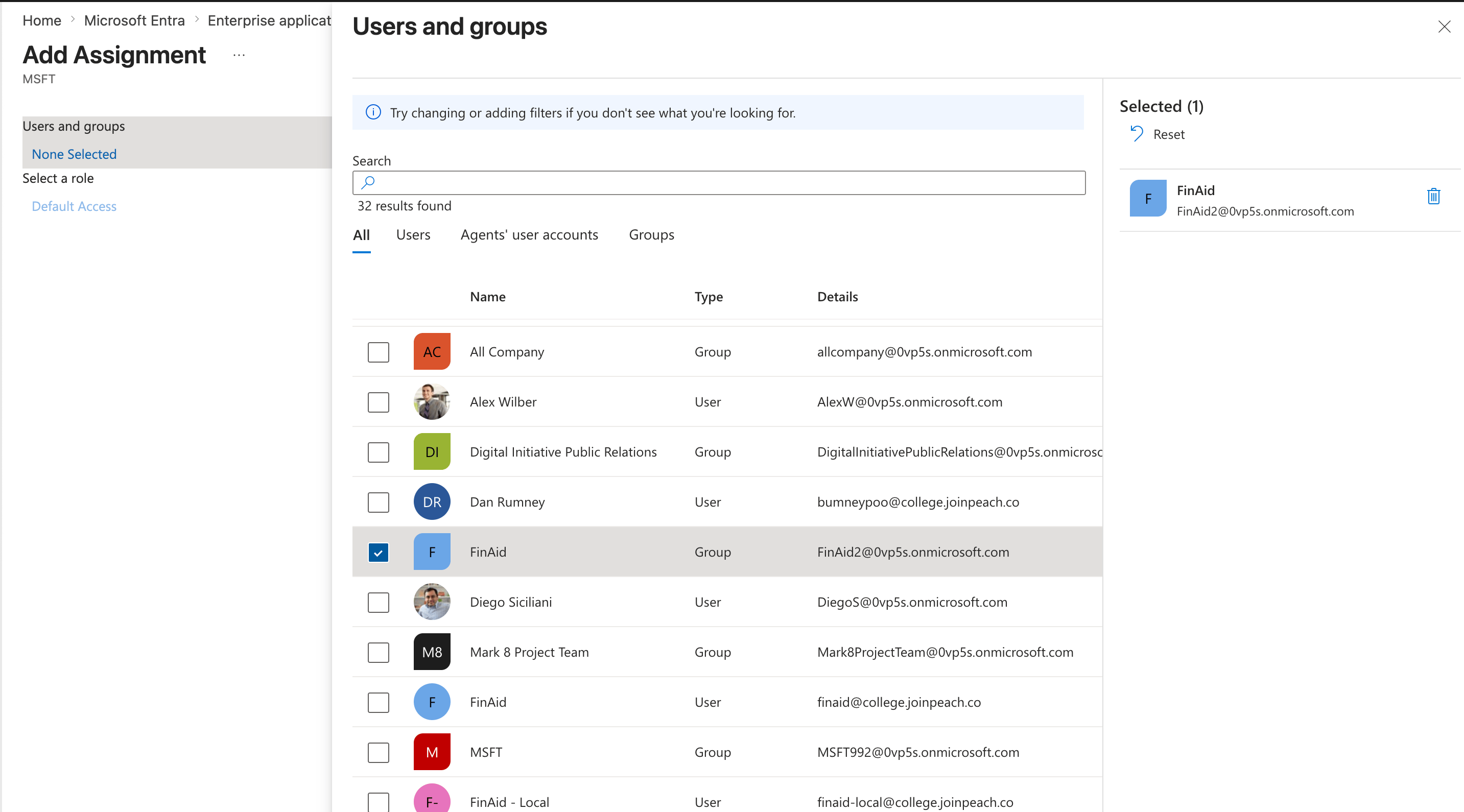
## Step 4: Assign users and groups
Navigate to:
```text theme={null}
Users and Groups
```
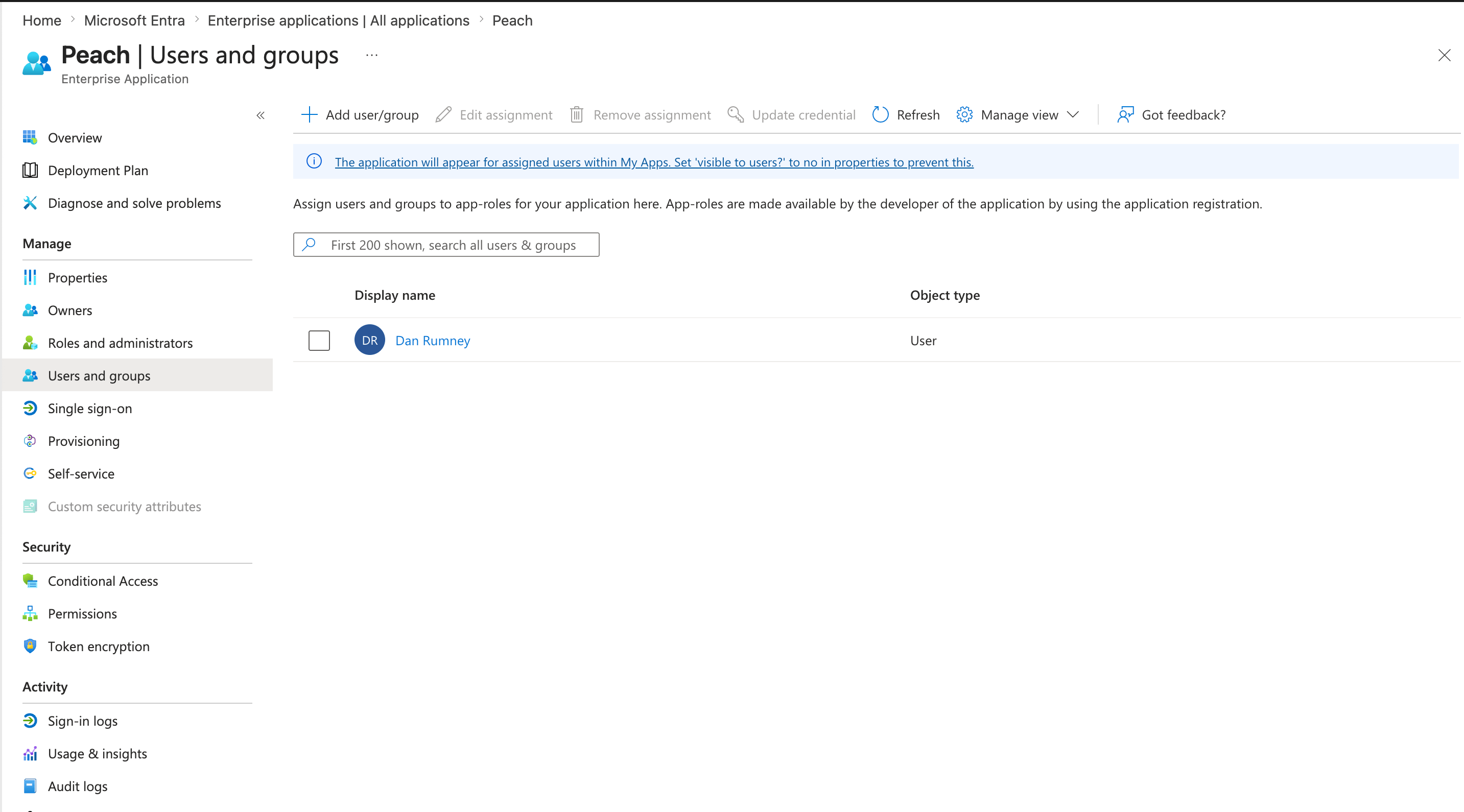
Select **Add User/Group**.
Choose the users or groups that should have access to Peach.
***
## Step 4: Assign users and groups
Navigate to:
```text theme={null}
Users and Groups
```
Select **Add User/Group**.
Choose the users or groups that should have access to Peach.
 ***
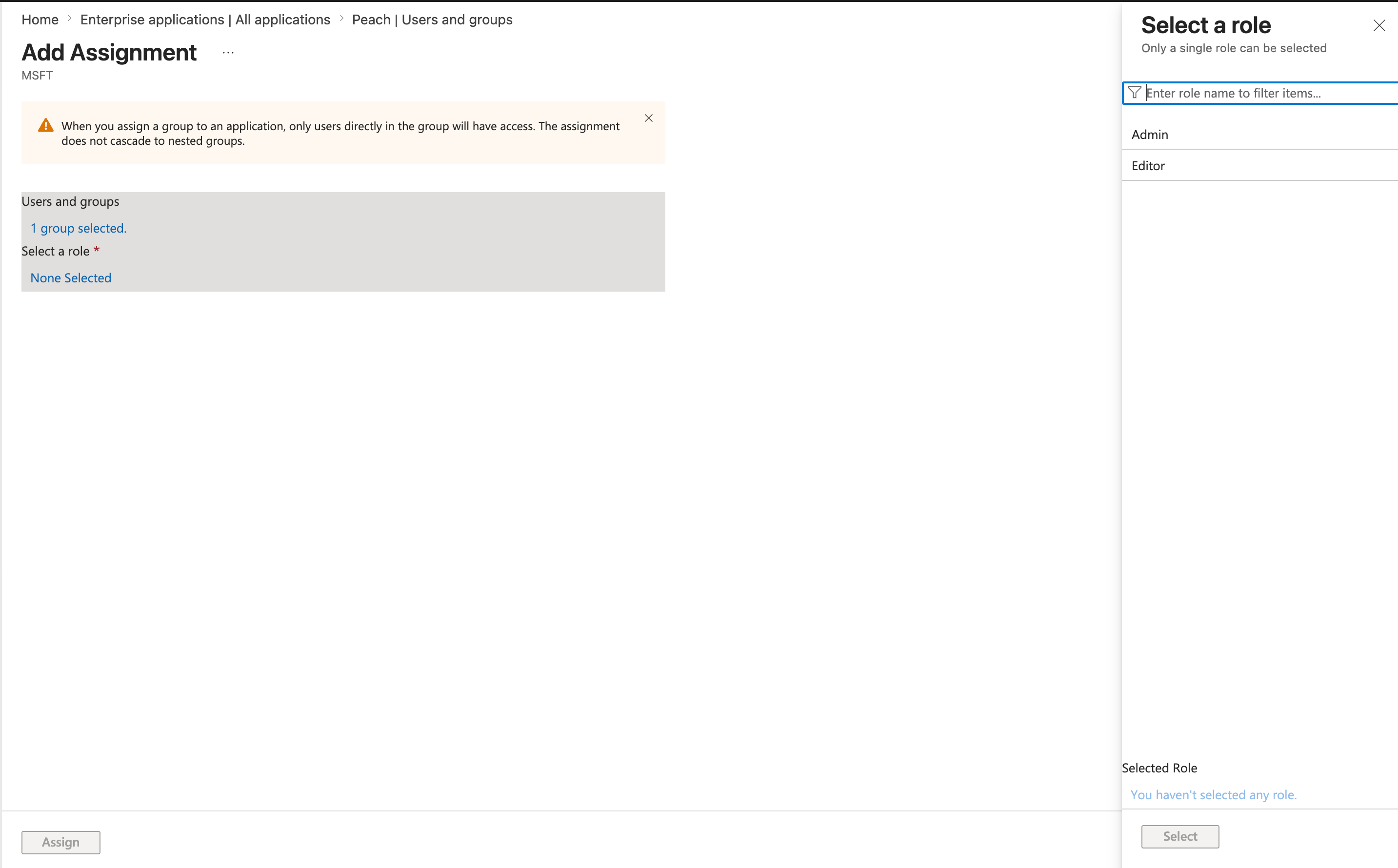
## Step 5: Assign roles
Each user or group must be assigned a role.
Manage users, integrations, shared inboxes, and platform settings.
Work tickets, generate AI responses, and send emails from connected inboxes.
Select the appropriate role before saving the assignment.
***
## Step 5: Assign roles
Each user or group must be assigned a role.
Manage users, integrations, shared inboxes, and platform settings.
Work tickets, generate AI responses, and send emails from connected inboxes.
Select the appropriate role before saving the assignment.
 Users who are not assigned to the Peach application will not be able to sign in.
***
## Verify access
Ask an assigned user to:
1. Navigate to `app.joinpeach.co`
2. Select **Sign in with Microsoft 365**
3. Complete authentication
If login succeeds, the Microsoft integration is configured correctly.
Successful login confirms that Peach has been properly configured within your Microsoft tenant.
***
## Troubleshooting
Verify the admin consent step was completed using a Microsoft Entra administrator account.
Confirm the user or security group has been assigned to the Peach Enterprise Application.
Verify the user has access to the shared mailbox in Microsoft 365.
***
## Next Steps
Review the permissions Peach requires and why.
Verify Peach can successfully send outbound emails.
Users who are not assigned to the Peach application will not be able to sign in.
***
## Verify access
Ask an assigned user to:
1. Navigate to `app.joinpeach.co`
2. Select **Sign in with Microsoft 365**
3. Complete authentication
If login succeeds, the Microsoft integration is configured correctly.
Successful login confirms that Peach has been properly configured within your Microsoft tenant.
***
## Troubleshooting
Verify the admin consent step was completed using a Microsoft Entra administrator account.
Confirm the user or security group has been assigned to the Peach Enterprise Application.
Verify the user has access to the shared mailbox in Microsoft 365.
***
## Next Steps
Review the permissions Peach requires and why.
Verify Peach can successfully send outbound emails.